Your customers aren’t all asking AI the same questions in the same language.
The way your brand shows up in ChatGPT, Claude, Perplexity, and other AI platforms can look very different in the US vs. Canada, or in English vs. Spanish.
Until now, brands had to choose between tracking one region at a time or juggling multiple projects to piece together a global view. That changes now.
We’re excited to announce Markets, a powerful new feature in Writesonic. You can track your AI visibility across multiple countries and languages, all in one place.
The Problem: Too Many Projects, Not Enough Clarity
If you’ve tried tracking AI visibility across regions before, you know the drill:
- One project for the US.
- Another for Canada.
- Separate ones for Germany, India, and Australia.
- And if you want to compare English vs. Spanish in the US? That’s another project.
Very quickly, your dashboard becomes crowded with dozens of projects for the same domain. Each one represents one part of visibility, but none of them give you the complete picture.
Markets is Our Solution
Markets replaces the clutter with clarity. Instead of creating separate projects for every country and language, you can now manage them all within a single project.
Each market is a 1:1 combination of a country and a language. That means you can:
- Track multiple markets in a single project
- Compare visibility across regions side by side
- Add multilingual variations for the same country without duplicating projects
For example, you can add Spain – English and Spain – Spanish as two markets in the same project, instantly comparing how AI platforms discuss your brand in both languages.
How to Set Up Markets
Getting started with Markets is straightforward. You can set up new markets in just a few clicks:
Step 1: Go to your project Overview > Topics and Prompts > All Markets drop down on the top right. From there, select “Add a market” or “Manage markets.”
Step 2: Pick the target country and language you want to monitor. Optionally, add a localized homepage URL if you have one.
Step 3: Set up prompts. Copy prompts from an existing market for consistency, or create a new prompt set tailored to that region.
Step 4: Select topics. Focus on areas that matter most for your brand to generate relevant prompts for each market.
Step 5: Review generated prompts. Add any missed ones or remove any irrelevant ones for that specific market.
Step 6: Add competitors. Each market might have different top competitors, even though your product is the same.
Once added, your market appears with its country flag and language in the All Markets drop-down. You can select specific markets or choose to see a unified view of all your prompts.
Use Cases
Markets unlocks new ways to understand and optimize your AI visibility across the globe:
- Global Expansion Tracking: See how your brand shows up in AI platforms as you enter new regions, and compare performance between established and emerging markets.
- Multilingual Market Analysis: In countries like Canada or the US where people use multiple languages, track them side by side to understand how different audiences perceive your brand.
- Competitive Intelligence: Benchmark your AI presence against competitors in different regions and spot areas where you’re ahead or need to improve.
- Regional Launch Preparation: Before launching a product in a new market, analyze the AI conversation landscape to identify opportunities and risks.
- Content Localization Impact: Measure whether fully localized content outperforms translated campaigns, helping justify localization investments.
- Crisis Management: Track sentiment shifts across regions so you can respond to potential issues before they escalate.
- Agency Pitch Development: Use market-level insights to show prospects their AI visibility gaps and build tailored GEO strategies that win business.
Local GEO: Current Limitations & Workaround Strategy
At the moment, Markets supports country-level configuration only. That means you can’t natively track at the city or state level yet.
However, if your strategy requires local-level insights, you can still approximate them through prompt engineering.
This isn’t a perfect substitute. Results may occasionally include adjacent areas, and city-level coverage can’t be guaranteed, but it does give you a way to focus GEO tracking more narrowly.
How to Configure Local GEO Prompts:
- Select the country where your target cities or regions are located. Use this country-level market as your base configuration.
- Add precise geographic terms directly into every prompt. This biases AI visibility tracking toward the local area you care about. For example: Which is the most popular food delivery apps in Toronto, Ontario, Canada.
- Always use the full location format: City, State/Province, Country. Example: “San Francisco, California, USA”
- Include variants. Add commonly used short forms or aliases in parentheses. Example: “New York City (NYC)” or “San Francisco (Bay Area)”
By applying this method consistently, you can approximate city- or region-specific AI visibility while still leveraging the country-level setup in Markets.
Check Out Markets in Writesonic
Markets is now live in GEO for all enterprise users.
With this feature, you can finally move beyond fragmented projects and get a true global view of your AI visibility. Whether you’re expanding into new regions, running multilingual campaigns, or benchmarking competitors, Markets gives you one dashboard to track it all.
Ready to see how your brand shows up in different countries and languages? Log in to your Writesonic dashboard to explore Markets today.
Questions about setup or best practices? Our team is here to help. Reach out at [email protected]
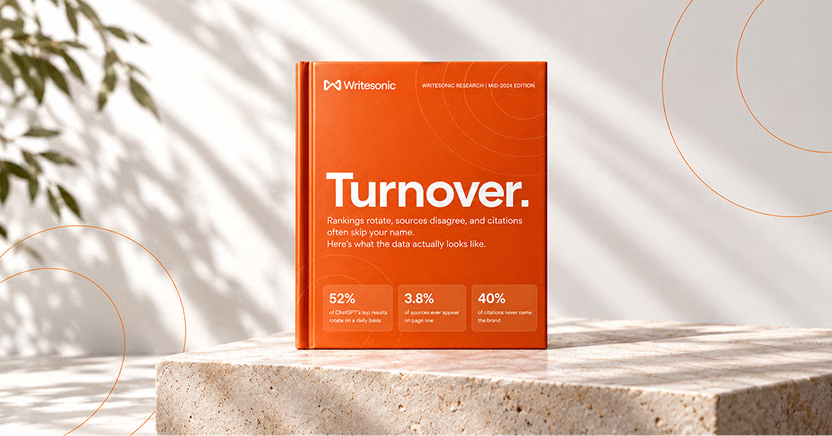
The #1 brand in ChatGPT changes 52% of the time.
Get the report and find out why.

Niyati Mahale is a SEO/GEO Content Writer @Writesonic. She specializes in artificial intelligence and B2B, with a flair for combining effective storytelling and SEO best practices to create impactful content.