You’re tracking hundreds of prompts. Maybe thousands.
You know your brand shows up in AI search. You know competitors are there too. But when someone asks “which prompts are we losing to Jasper?” or “where are we cited but ranked below #3?” you’re stuck scrolling through rows, trying to piece together the answer manually.
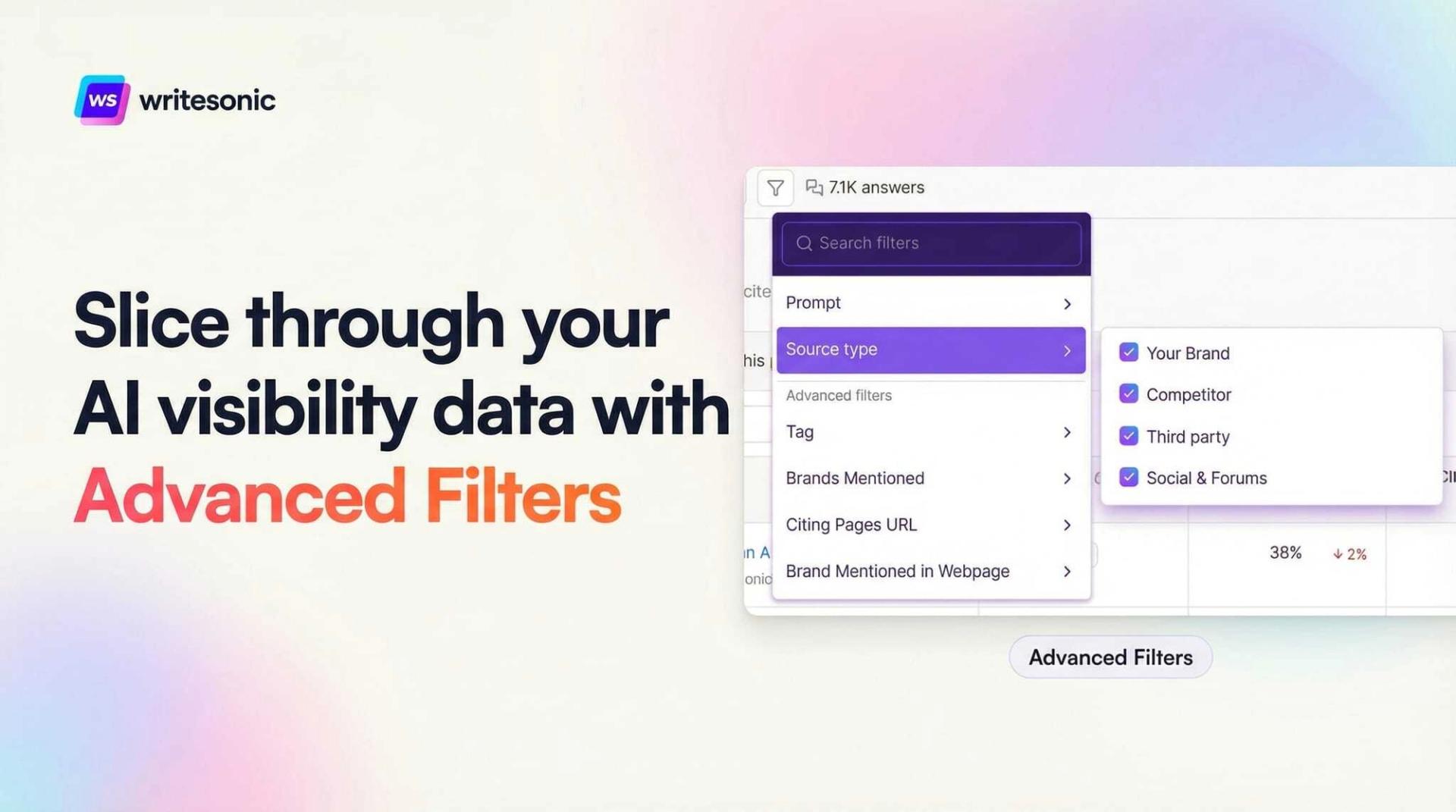
Advanced Filters changes this. It’s now live on your All Prompts and All Citations pages.
The Problem: Too Much Data, Not Enough Signal
GEO tracking generates a lot of data. That’s the point. You want to see every prompt and citation across ChatGPT, Perplexity, Claude, Gemini, and more.
But volume creates a new problem: finding the signal.
Standard filters get you part of the way. You can filter by platform or topic. But the real questions are more layered:
- “Show me prompts where we have 0% visibility BUT our competitor is mentioned.”
- “Which prompts cite our blog posts AND have high search volume?”
Until now, answering those meant exporting to a spreadsheet and manually analyzing everything.
What Advanced Filters Does
Advanced Filters lets you build multi-condition queries with AND/OR logic directly in the platform. No more spreadsheet exports.
You get 9 filters on the All Prompts page and 3 on the All Citations page. Each one targets a specific dimension of your AI visibility data.
On All Prompts
- Brands Mentioned — Which brands appear in the AI answer?
- Citing Domains — Which domains are AI engines pulling from?
- Citing Pages URL — Drill down to whether a specific page is getting cited.
- Visibility — Filter by AI Visibility score. Find your wins or your gaps.
- Rank — Where does your brand appear relative to competitors?
- Prompt Volume — Prioritize high-traffic prompts.
- Brand in Webpage Content — Is your brand mentioned in the source pages AI engines reference?
- Shopping Cards — Does the response include product recommendation cards?
- Ads — Are paid placements showing alongside the AI answer?
On All Citations
- Brands Mentioned — Which brands appear in answers that cite these pages?
- Citing Pages URL — Find a specific page’s citation performance instantly.
- Brand in Webpage Content — Which cited pages mention your brand in their actual content?
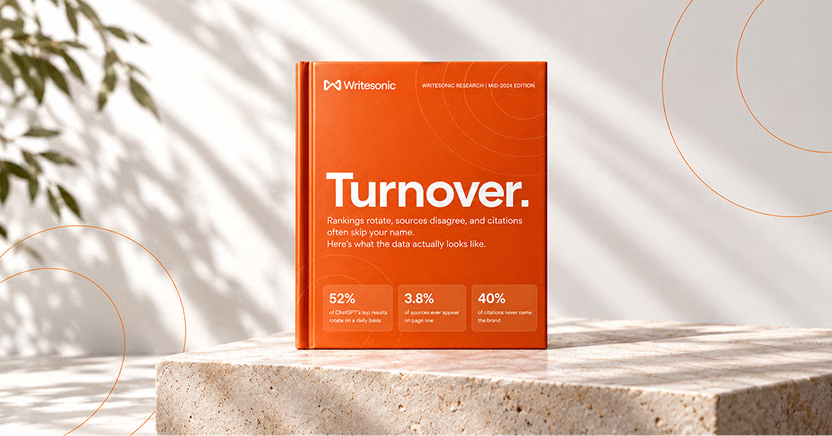
The #1 brand in ChatGPT changes 52% of the time.
Get the report and find out why.
How It Works
Open the filter panel on All Prompts or All Citations. Below your standard filters, you’ll see the Advanced Filters section.
Pick a filter category. Set your conditions using Is or Is Not. Combine multiple conditions with AND to narrow results, or OR to broaden them.
Click Apply. Your data updates instantly.
Here’s how you can use it in practice:
Find your competitive gaps:
Brand Mentioned Is “Competitor A” AND Brand Mentioned Is Not “Your Brand” → Every prompt where they show up and you don’t.
Identify high-value citations:
Citing Domains Is “yourdomain.com” AND Prompt Volume is high → Your most impactful cited pages.
Monitor ad interference:
Ads Is present AND Visibility is below target → Prompts where paid placements might be eating into your organic visibility.
Why This Matters
AI visibility data is only useful if you can act on it quickly. Advanced Filters lets you slice your data precisely so you’re spending time on execution, not hunting for the right rows.
Advanced Filters is live now in your Writesonic GEO Platform. Open All Prompts or All Citations and start filtering.
The #1 brand in ChatGPT changes 52% of the time.
Get the report and find out why.

Niyati Mahale is a SEO/GEO Content Writer @Writesonic. She specializes in artificial intelligence and B2B, with a flair for combining effective storytelling and SEO best practices to create impactful content.